


Max Cleaner
4.460.00 Reviews
App Specs
- Version
- 1.2.0
- Updated On
- License
- Free
- Downloads
- 1,000,000+
- Developer
- FWP Bigtime
- Categories
- Tools
- Platform
- Android
Screenshots
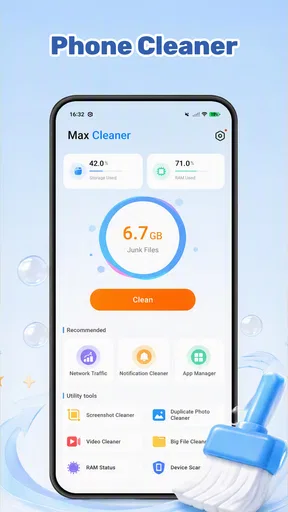
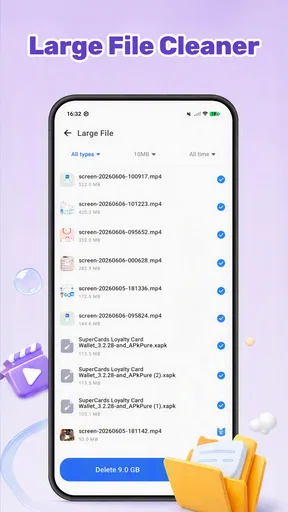
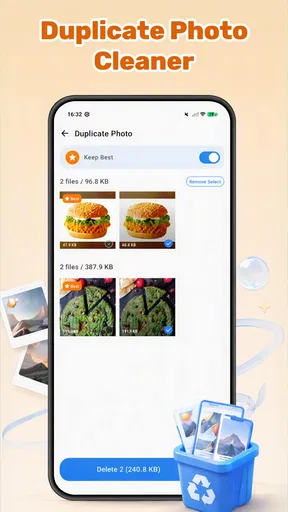
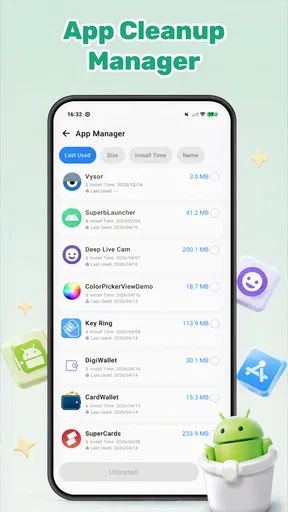
 Analysis by AppCompare
My first test with a storage cleaner would not be how much it can remove, but whether I can understand what it wants to do before anything changes. That matters with Max Cleaner, a free Android tools app from FWP Bigtime. It brings storage cleanup, duplicate-photo handling, and app management into one place, but I’d still keep myself in charge: the app can help surface candidates, while only I can judge which files matter.
Trust starts with the choices on your phone
A cleaner’s name and purpose do not tell me how it handles information. I would make a decision based on the explanations and options I can actually see while using it: what access Android requests, what the app says that access is for, and whether the available choices feel appropriate. If I could not understand a prompt, I’d pause rather than grant access just to get through setup.
That cautious starting point is useful even if you are only trying to clear a little space. File access can bring personal material into view, and deciding what to remove is different from deciding whether an app may inspect it. I would treat those as separate choices, take time with the prompts, and keep the scope of a cleanup as narrow as I can.
Useful cleanup, with a human in the loop
I focus here on the practical balance between convenience and caution: a single utility can make several housekeeping tasks easier to find, but it should not make personal-file decisions on your behalf. I’d use its suggestions as a starting point, then look closely at what each proposed action would affect before moving on to the app’s specific controls.
What the app is trying to make easier
The appeal is straightforward. When storage is tight, locating expendable files can take longer than deleting them. Max Cleaner brings junk cleanup, duplicate-photo removal, and app management together, giving people one place to start instead of hunting through separate system menus. In my view, that combination is most useful for someone who wants a guided housekeeping routine, not a technical dashboard full of storage diagnostics.
The distinction matters because a cleaner cannot know which old screenshot is important to you. A duplicate image may be a near-identical shot that you want to keep, while a file that looks disposable may belong to an app or workflow you rely on. I’d treat the app as a way to surface candidates for review, not as an authority on what your phone no longer needs.
That cautious approach is especially sensible for photos. Before removing anything, look at the actual images and compare them: two pictures can appear identical in a thumbnail while differing in crop, sharpness, or the moment captured. If you use photos as receipts, work records, or family memories, checking first is worth the extra minute.
Worth Reading Before You Choose

EA SPORTS FC Mobile 26 Is a Bigger Football Game, but It Takes Time

Flipboard Shows What News Apps Must Do Beyond the Feed

Switching to Android Auto Means Rethinking Your Driving Routine

Google Calendar Makes a Crowded Week Easier to Manage

Ludo King Makes the Most of the Minutes Between Plans

Baby Panda World Brings Quick Play to Modern Phones, but Its Game Library Feels Busy
What the public track record can—and cannot—tell you
The app has a 4.4 average from around 2,400 ratings, with more than a million installs. Those figures suggest that many Android users have tried it, but they don’t tell me whether a particular cleanup recommendation will suit your habits or how you’ll feel about the app’s handling of access and data. I see popularity as context, not a substitute for checking prompts and making deliberate choices.
Max Cleaner is rated for Everyone and is free to install. The current release is version 1.2.0, and it requires Android 7.0 or later. Those details make it accessible to a broad range of Android users, but I’d still check that your device’s own storage tools don’t already cover everything you need. A separate cleaner is most worthwhile when its combined workflow saves you time rather than adding another app to maintain.
FWP Bigtime is the developer behind it. For a utility that deals with storage and photo organization, I would make my trust decision based on the choices presented on the device: what access is requested, why the app says it needs it, and whether I can proceed without granting something I’m uncomfortable with. I would not assume that a cleaner is safer or more effective merely because it has a familiar interface or a large audience.
Permissions and choices deserve a close look
Permissions are a practical trust checkpoint, not a formality. When Android asks for access, read the prompt rather than tapping through automatically. Ask whether the requested access makes sense for the action you’re taking, and whether the operating system offers a narrower choice. If a prompt’s purpose is unclear, pause and check the app’s explanation before continuing.
I also recommend separating permission decisions from cleanup decisions. Granting access to inspect files does not mean you have to delete what the app finds. Review each proposed action in context, especially when it concerns photos or items you don’t recognize. If the app makes a recommendation that feels too broad, leaving those files untouched is a reasonable outcome—not a failed cleanup.
For data-sensitive moments, be especially attentive when opening the app for the first time, starting a scan, or choosing a cleanup action. Those are the points when a utility may ask for access or present consequential choices. I would read any in-app explanation and Android permission dialog at the moment it appears instead of relying on assumptions about what “cleaning” normally entails.
I can’t responsibly infer private-data practices from the app’s name or its basic purpose. A cleaner’s access to local content and its handling of information are separate questions, so I’d consult the app’s visible disclosures and Android’s permission controls before using it with sensitive material. If those explanations don’t give you enough confidence, the built-in storage manager is the more conservative option.
A safer way to use cleanup and photo tools
My preferred workflow is to begin with the least consequential task. Check what is taking up space, review the app’s proposed junk cleanup, and remove only items you understand. Then approach duplicate photos separately, when you have enough time to inspect likely matches. This order helps avoid making a rushed decision simply because a scan has produced a long list.
A useful, less obvious habit is to clean in small batches rather than approving a large selection at once. If the result is not what you expected, you can stop and reconsider before repeating the action. For personal pictures, I’d first make sure that important images are backed up through whatever method I already trust; a cleanup tool should not become the only place standing between a memory and its deletion.
App management also benefits from a deliberate pass. If you are trying to free space, start with apps you recognize and no longer use, then check whether their saved work, downloads, or offline content matters to you. Removing an app may solve one problem while removing local material you meant to keep. The useful question is not simply “Can this go?” but “What will I lose if it does?”
Consider a familiar scenario: you’re about to record a long event and discover that your phone is low on space. Max Cleaner may offer a quicker place to inspect clutter and old photo duplicates than searching through several screens. I’d still avoid tapping a broad cleanup option in a hurry. First inspect the candidates, remove only obvious throwaways, and leave uncertain files for later. In a time-sensitive moment, a modest safe cleanup beats a more aggressive one that risks deleting something valuable.
Where it fits beside Android’s built-in tools
The usual alternative is to manage storage from Android’s own settings and review photos in the gallery app you already use. That route can feel more manual, but it keeps the work close to familiar system controls and avoids adding a dedicated cleaner. If you only need to uninstall an app or delete a few known files, I’d start there; there is little benefit in introducing another step for a simple task.
Max Cleaner makes more sense when you want its three areas—junk cleanup, duplicate-photo handling, and app management—in a single utility. That is a convenience advantage, not proof that it can identify every safe deletion better than you can. A focused photo organizer may be preferable if your main problem is sorting a large picture library, while built-in tools may suit someone who wants the narrowest possible workflow.
There is also a trade-off between speed and certainty. A consolidated cleaner can make it easier to find things worth reviewing, but any time-saving suggestion needs a second look when the files are personal or unfamiliar. I would judge the app by whether its results are understandable and its choices feel manageable on your own phone, not by how much it claims to remove in one pass.
Make the first cleanup a small experiment
If you decide to try it, I’d treat the first session as a chance to learn how its suggestions are presented, not as a mission to clear the maximum amount of space. Pick a task with low stakes, inspect what is selected, and notice whether the explanation gives you enough context to decide. If you are unsure about an item, leave it alone and see whether the rest of the workflow is still useful.
This approach also helps answer a practical question: does a combined cleaner actually save you effort? If you mainly want to uninstall one app, Android’s settings may be quicker. If you regularly need to review several kinds of clutter, having those tasks gathered in one utility could be more convenient. The difference is personal, so I’d judge it by whether the routine feels clearer after a careful trial, not by the number of suggestions shown.
Another useful trade-off is timing. Photo review is a poor task to squeeze into a rushed moment, while checking an app you clearly no longer use may be easier to do between other chores. I’d separate those jobs rather than treating every result from a scan as one batch. That keeps convenience from turning into pressure to make decisions about files you have not inspected.
Who will benefit, and who should pass
I’d consider Max Cleaner if storage clutter returns often, you have accumulated possible duplicate pictures, and you want a single starting point for routine housekeeping. It is also a reasonable option for someone comfortable checking permission prompts and reviewing suggested files rather than approving every recommendation. The broad Everyone rating makes it suitable for general audiences, but careful habits still matter for anyone handling family, work, or personal photos.
I’d skip it if your phone’s built-in storage controls already solve the problem, if you rarely run short of space, or if you prefer not to grant a utility access to files. It may also be a poor fit for anyone expecting a cleaner to decide automatically what is safe to erase. For that user, manual selection through Android or a familiar gallery is slower but offers a clearer sense of control.
I’d also choose a more focused option if my main goal were organizing a large photo collection rather than routine storage housekeeping. A general cleaner’s convenience does not replace a workflow built around careful photo sorting. And if you are uncomfortable with a permission prompt or cannot make sense of an explanation, there is no need to push through: using the system tools you already understand is a perfectly sensible choice.
A cautious recommendation
My view is that Max Cleaner is best approached as a convenient assistant, not a one-tap fix. Its mix of cleanup, duplicate-photo review, and app management gives it a clear everyday purpose, and its free availability lowers the barrier to trying it. The meaningful test, though, is whether its prompts and recommendations are clear enough for you to make informed decisions on your own device.
If you install it, start with a small, low-risk cleanup and pay attention to every access request. Keep personal photos and unfamiliar files out of any broad deletion until you have inspected them, and use Android’s own controls when they feel more transparent. With that measured approach, Max Cleaner may help make routine storage chores less scattered; if you want minimal permissions or already have a comfortable system, sticking with the tools you know is the better choice.
Pros
- Quickly clears cached files and other app leftovers.
- Simple interface makes basic cleanup easy to navigate.
- Includes tools for checking storage use.
- Can help identify apps taking up significant space.
- Useful for occasional maintenance on a cluttered device.
Cons
- Cleanup suggestions may include files you would prefer to keep.
- Results depend on Android version and device restrictions.
- Frequent ads can interrupt the cleanup process.
- Battery-saving claims may offer limited real-world benefit.
- Some features may require extra permissions or a subscription.
FAQs for Max Cleaner
What is Max Cleaner, and what does it do?
Max Cleaner is presented as a utility app for managing and cleaning an Android device. Depending on the version available in your region, its tools may include scanning for temporary or unnecessary files, helping manage storage, and providing device information or other maintenance features. The exact features can change, so check the app listing and in-app descriptions before installing rather than assuming it can improve every aspect of performance.
Is Max Cleaner safe to install and use?
Safety depends on obtaining the app from a trusted source and reviewing the permissions it requests. Use Google Play where available, check the developer name, recent reviews, and privacy details, and avoid unofficial download sites. A cleaner may need access to storage-related information to identify files, but permissions should make sense for its functions. Do not grant access you are uncomfortable with, and remember that no utility app can guarantee protection from malware.
Can Max Cleaner speed up my phone or extend battery life?
Max Cleaner may help you identify files to remove or show information about device use, but results vary with your phone, Android version, and storage situation. Removing unwanted files can free space; it does not necessarily make a device faster or improve battery life. Android already manages many background processes, and repeatedly force-closing apps can sometimes make them reopen and use more power. Treat performance and battery claims as possibilities, not guarantees.
Does Max Cleaner delete files automatically, and could I lose important data?
Before confirming any cleanup, review the items the app has selected and make sure you understand what will be removed. Temporary files and cached data are generally different from personal photos, downloads, or documents, but labels can be unclear and app behavior may vary by version. If a file matters, back it up first. Avoid one-tap cleanup until you have checked the selection, and use your phone’s built-in storage tools if you are unsure.
Is Max Cleaner free, and does it contain ads or offer subscriptions?
Pricing and monetization can vary by country, app version, and distribution channel. Max Cleaner may be free to download while displaying advertising or offering optional paid features, but you should confirm the current terms on its store listing and on any purchase screen. Read subscription duration, renewal price, and cancellation instructions before starting a trial or paying. If the app requests payment details unexpectedly, pause and verify the offer through the official store.


